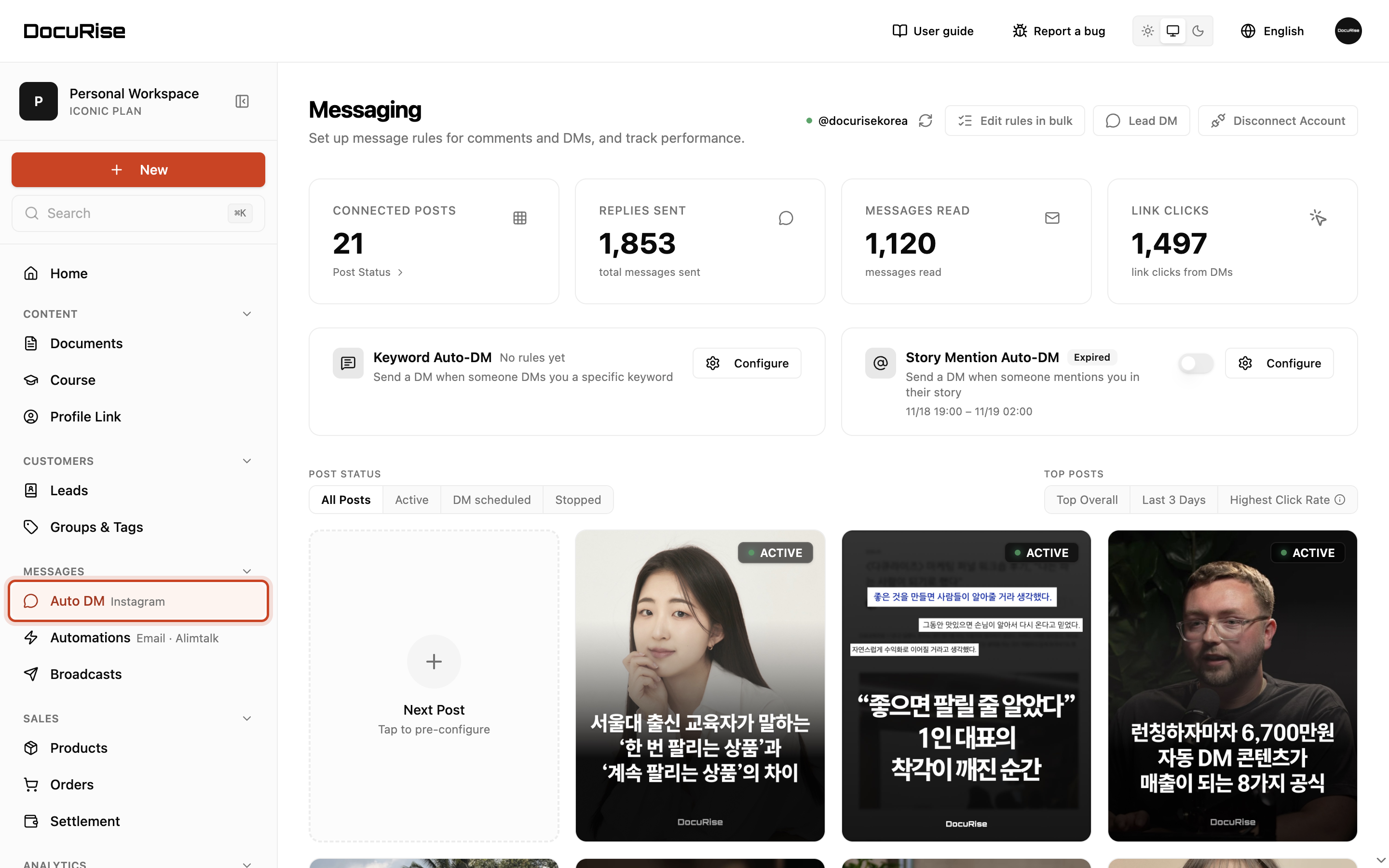
Step 1 / 9 · 1. Open the menu
[Auto DM] in the left menu
Once your account is connected, the Messaging screen opens.
Full setup flow
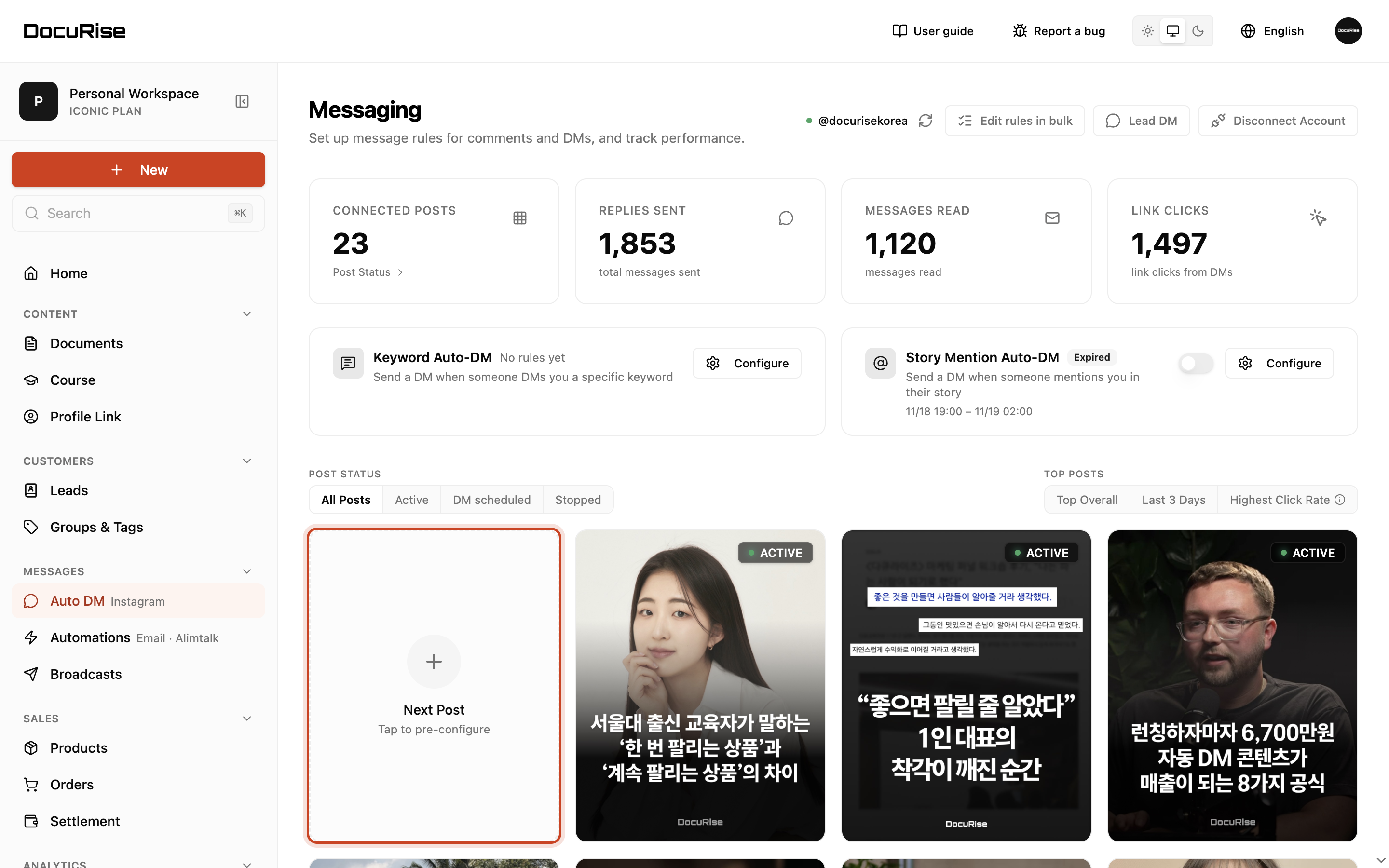
Step 2 / 9 · 2. Create a rule
Set it up in advance with [Next Post]
You can attach it to a post you have not uploaded yet.
Full setup flow
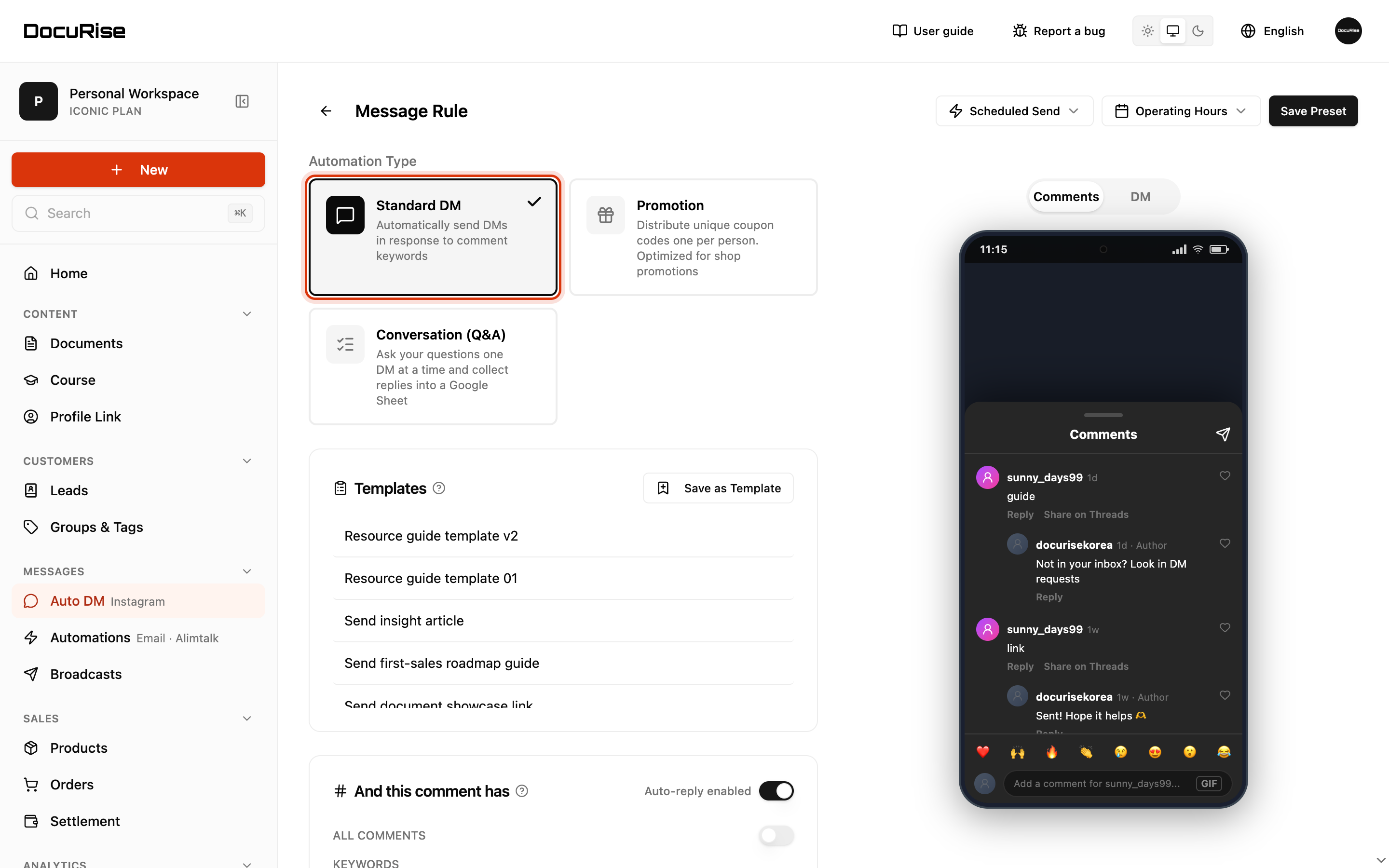
Step 3 / 9 · 2. Automation type
Choose [Standard DM] as the type
This is the basic type that sends a DM in response to comment keywords.
Full setup flow
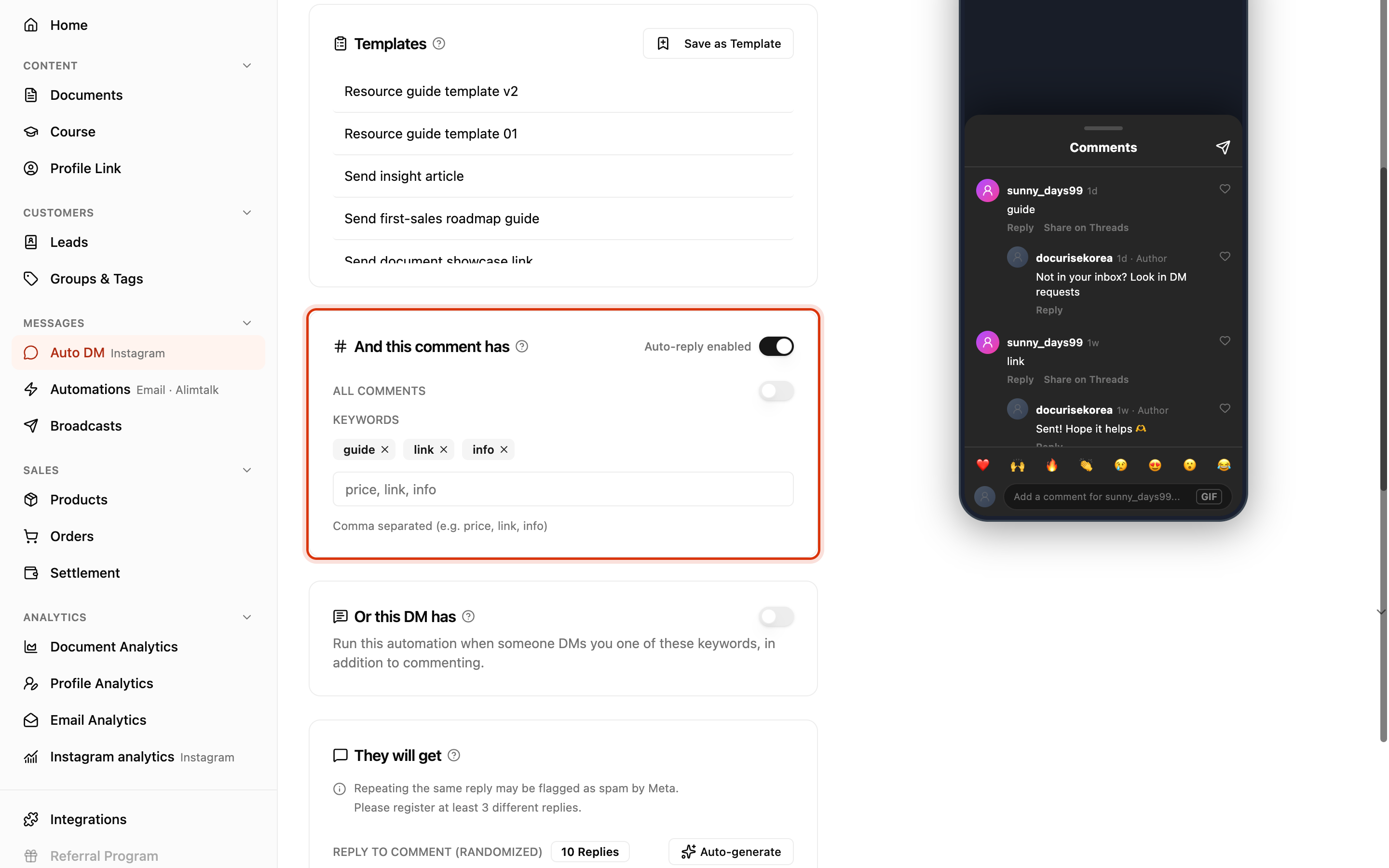
Step 4 / 9 · 2. Keywords
Enter the keywords to respond to
Separate several with commas, or respond to every comment with [All Comments].
Full setup flow
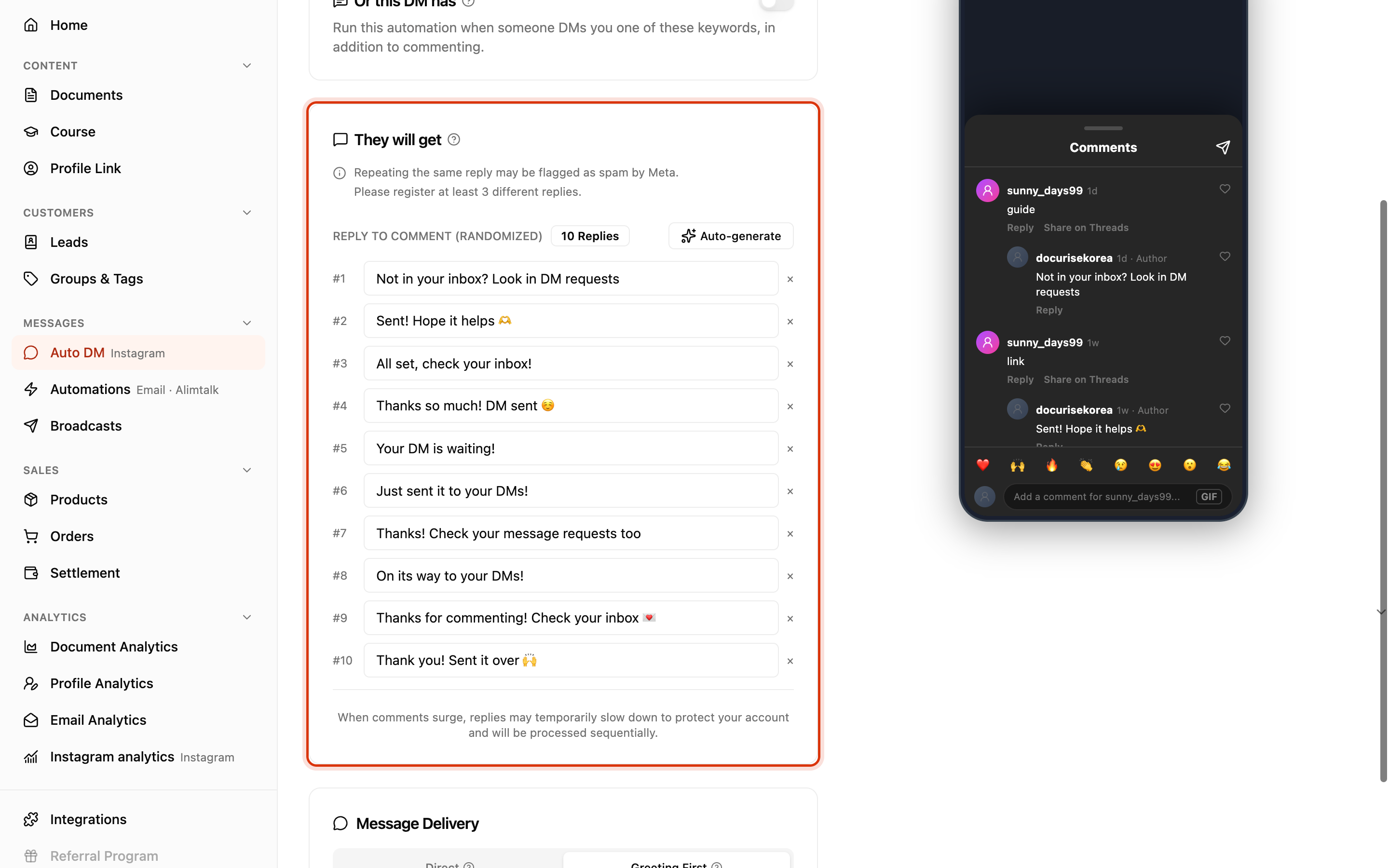
Step 5 / 9 · 3. Random replies
Register 3 to 10 replies
They rotate randomly so the same sentence does not repeat.
Full setup flow
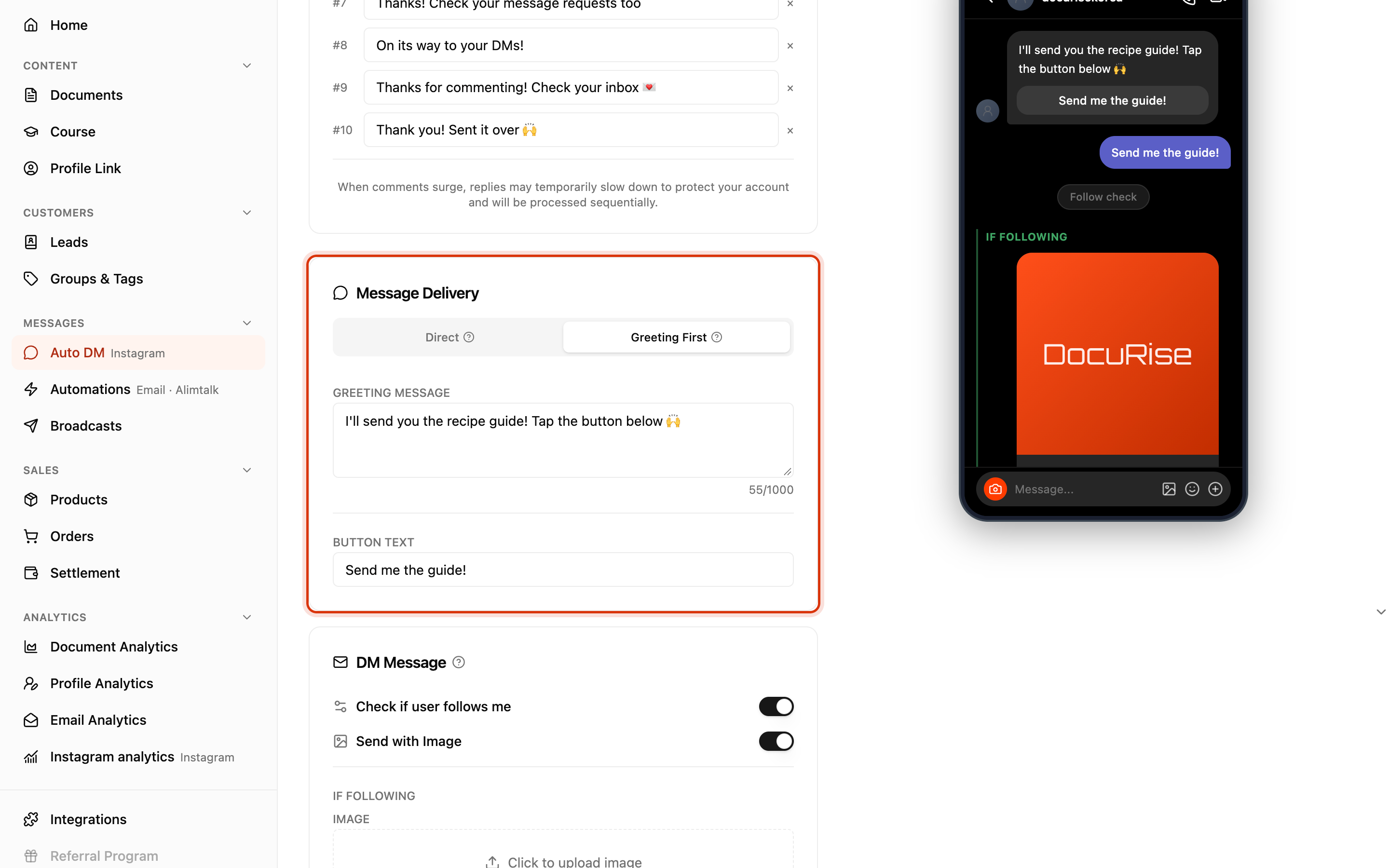
Step 6 / 9 · 4. Message delivery
Choose how the message is delivered
With [Greeting First], the resource goes to people who tap the button.
Full setup flow
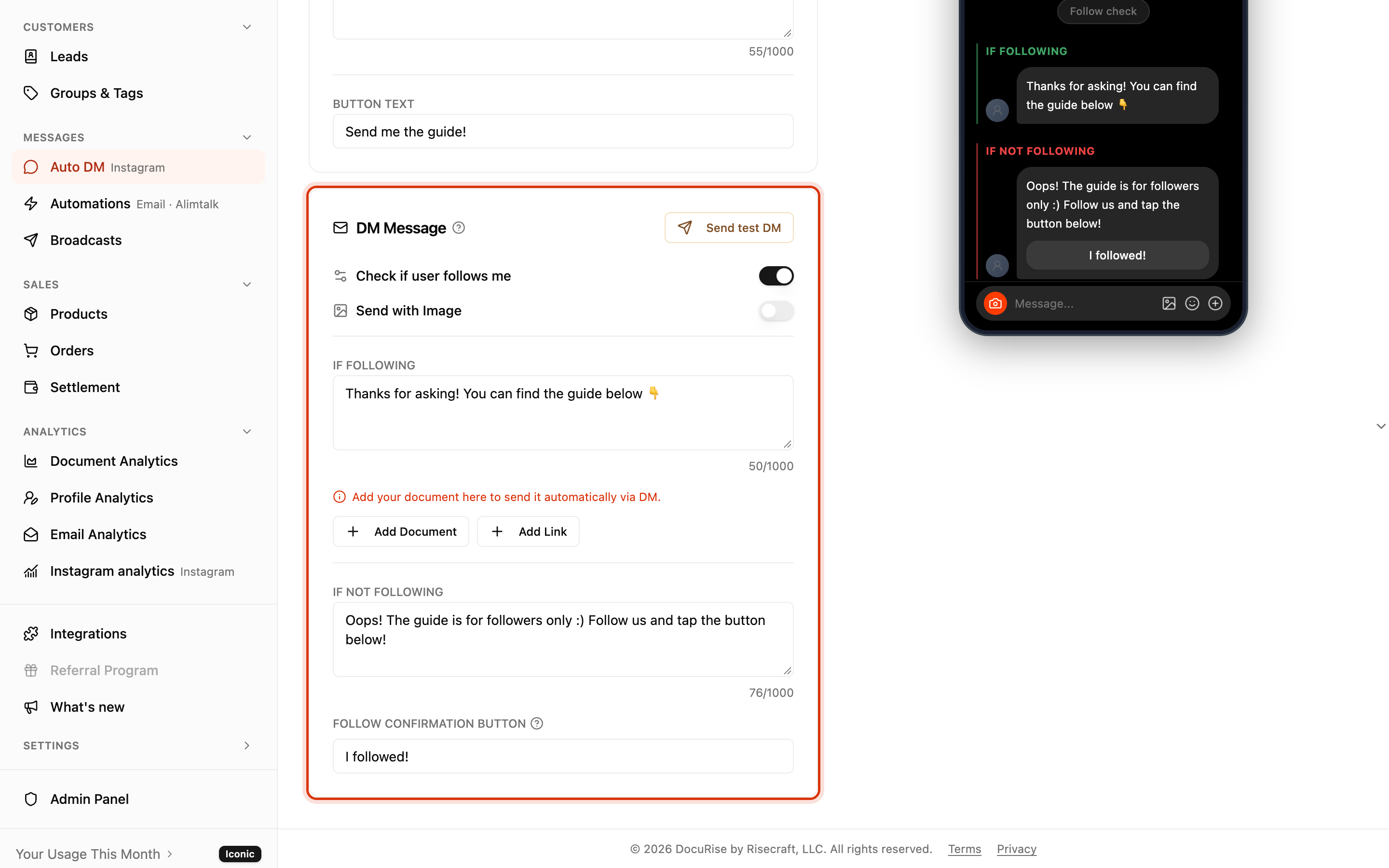
Step 7 / 9 · 4. Follow check
Split followers and non-followers
Write a message for each and add a confirmation button.
Full setup flow
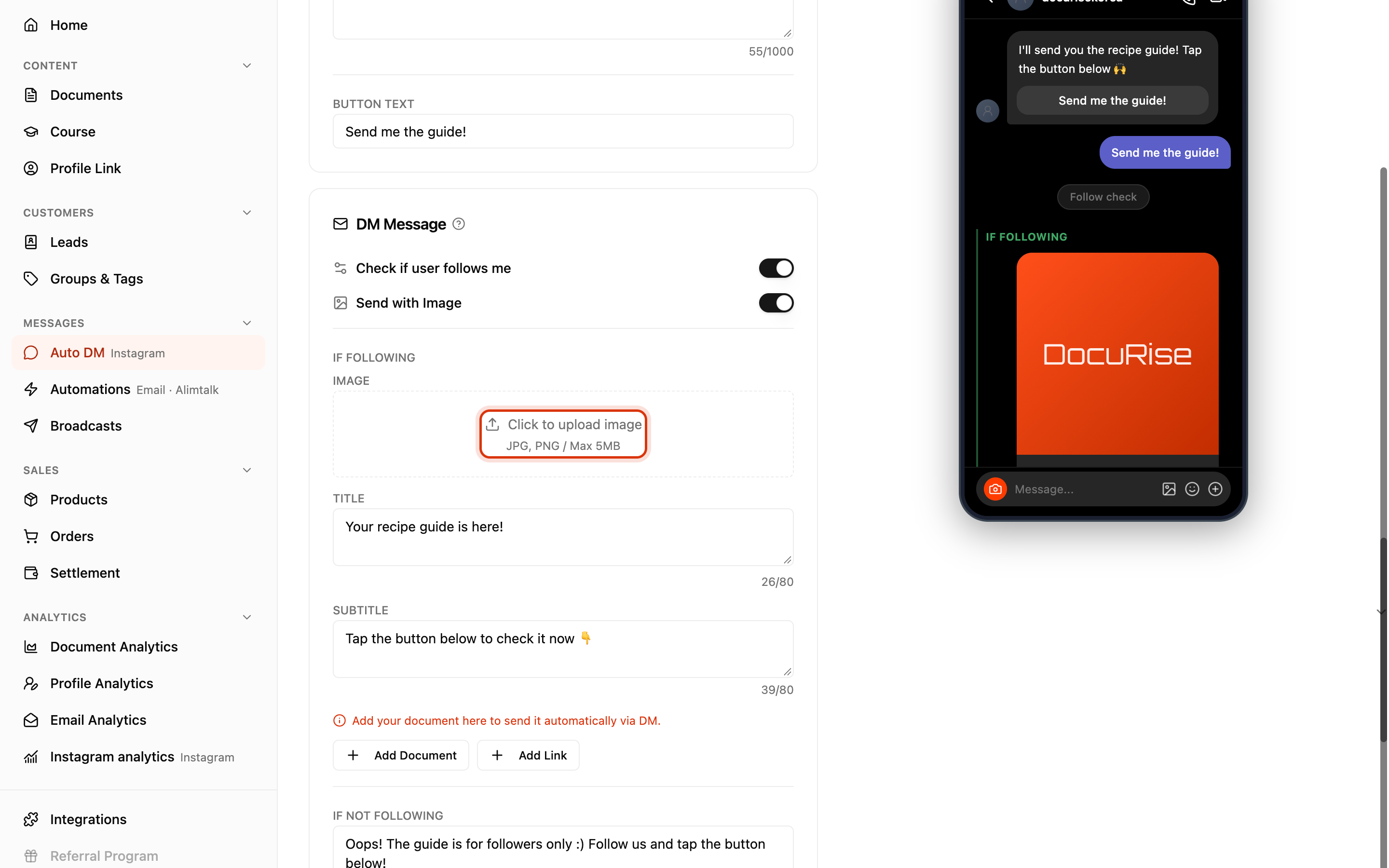
Step 8 / 9 · 4. Send with image
Add an image if you need one
If you have something to show, send an image with a title.
Full setup flow
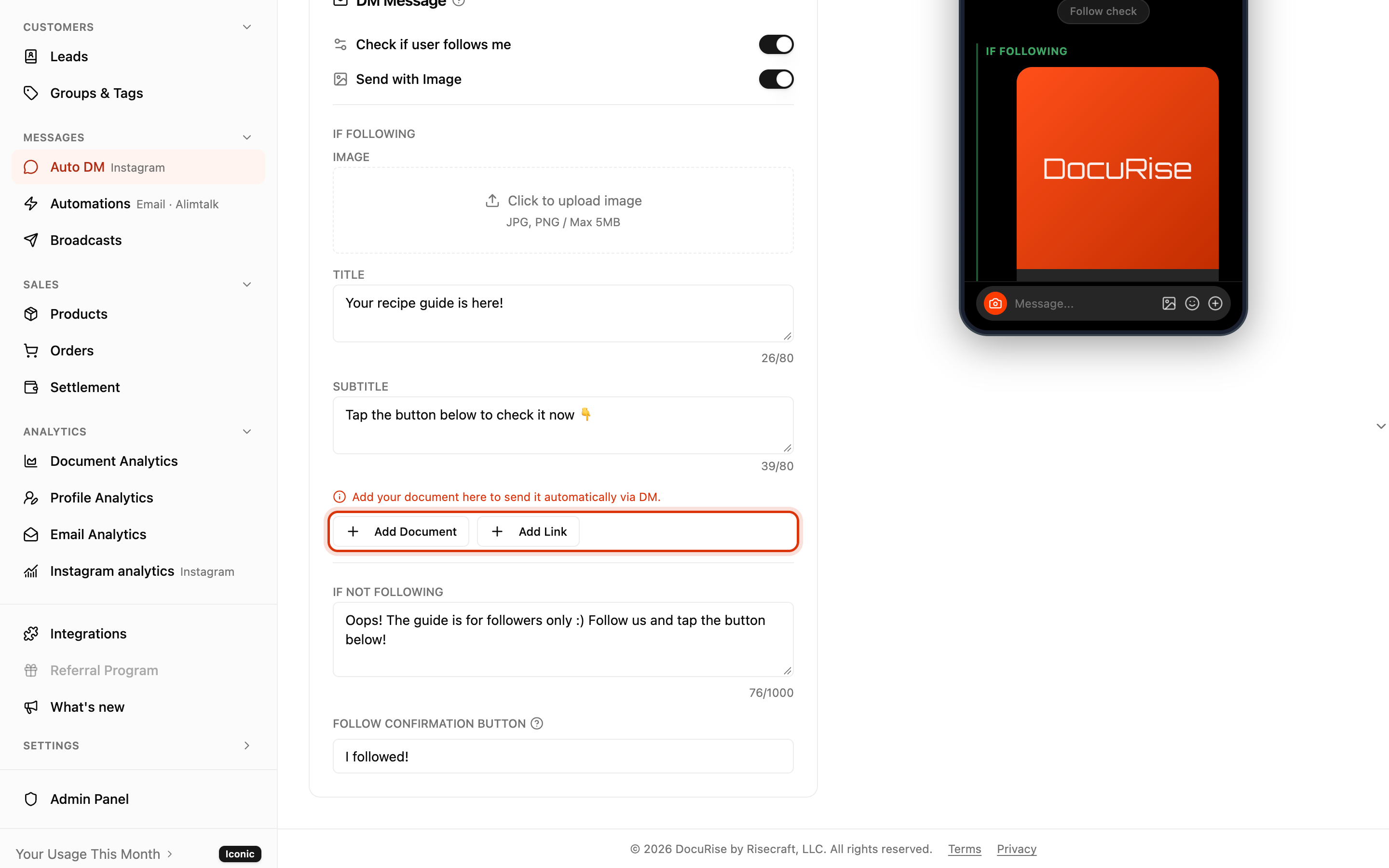
Step 9 / 9 · 5. Connect the resource
Finally, connect the resource to send
Connect it with [Add Document] and it goes out with the DM.
Full setup flow